Tuesday, November 23, 2010

Windows SharePoint Services 3.0 (WSS 3.0) and Form Base Authentication

I believe that these days it is not necessary to explain what SharePoint is.  Everyone at least heard the name. I would like to talk about how to install Windows SharePoint Services 3.0 and how to configure it to work inForm Base Authentication mode. You can ask me why Form Base Authentication Mode? There are several reasons for choosing it. One of them was to provide a Web Hosting with SharePoint enabled service. By using Form Base Authentication mode Webmaster can manage users directly through web interface. In this mode all users stored in MS SQL database, so webmaster does not need to have any permission on server or entire network.


So, let’s start from scratch, step by step.
The first step is to Install Internet Information Service (IIS). To do this I really recommend using “Manage Your Server” from Administration Tools and add a new role, Application server (IIS, ASP.NET). Please keep in mind NOT to do all this stuff on Domain Controller, please install WSS 3.0 on Member server.  After IIS successfully installed, start installation of Microsoft .NET Framework Version 2.0 Redistributable Package. If Microsoft .NET Framework Version 2.0 Redistributable Package was already installed, please reinstall it after IIS installation. When we finish with Microsoft .NET Framework Version 2.0 Redistributable Package, we have to install Microsoft .NET Framework 3.0 Redistributable Package. If Microsoft .NET Framework Version 3.0 Redistributable Package was already installed, please reinstall it after IIS installation. So far, so good. We are ready to start MS SQL 200x installation process. It is really straight forward process, so I’m not going to explain how to press NEXT NEXT NEXT :).
By this point, we already have IIS 6 and MS SQL Server installed on our server. Before we continue,PLEASE install last windows updates, at least for IIS and MS SQL.
When all new updates installed we are ready to start installation of Windows SharePoint Services (WSS 3.0). On “Chose the installation you want” screen select “Advance”.
On the next screen make selection according to the following picture:
When setup process completed, make sure to leave checkbox selected on the “Run the SharePoint Products and Technologies Configuration Wizard” and click ‘Close” button.
The “SharePoint Products and Technologies Configuration Wizard” should start immediately. On one of the next screens make selection about “farm” settings. In my case, I selected according to the following picture.
OK, now we have to provide information about our SQL server. You can see what I set on my server:
Make sure to check the next screen:
By clicking on “Advance” button on the next screen you will see some information necessary for setting up “Active Directory Account Creation Mode”, but we will speak about this in another article, right now just remember about this. So, we are not going to click on “Advance” button :) we just click on NEXT button and relax for a next few minutes until wizard completed.
OK, now we have to create our first “Web Application”. To do this we should start “SharePoint 3.0 Central Administration“ and go to the “Application Management” tab. On this tab we have to select “Create or extend Web application“.
On the next screen click on the “Create a new Web application”. Fill out all necessary information. Be careful in “Application Pool” section. Take a look at my application:
Of course, you can use other user account, not Administrator, but when I make a configuration, I prefer not to waste time on security issues and use Administrator account. When I get a working system I’m starting ahardening process and perform a security tasks. When Application created, we need to create a new site collection.  This process is straight forward, so I don’t what to provide any additional information about it. After all stuff that we did we can start IE and navigate to the http://localhost. We should gate something like this one:
At this point we can start setting up Form Base Authentication mode. Let’s allow the Anonymous accessto our web site. We need to come back to our “SharePoint 3.0 Central Administration” and go to “Application Management” tab. On that tab go to Application Security section and click on “Authentication providers” link. On the next screen select your Web Application, and under “Anonymous Access” section select “Enable anonymous access” check box and then click on SAVE button. Now, when we turned on anonymous access we have to go back to our default SharePoint web site (http://localhost) and from “Site Actions” select “Site Settings”.
On the next screen click on “Advanced permissions” link and from “Settings” select “Anonymous Access”
On the “Change Anonymous Access Settings: WSS 3.0” window select “Entire Web site” and click onOK button. We have enabled an Anonymous Access and we can continue to the most interesting part of this article. On the next step I recommend to install “Microsoft Visual Web Developer 2008 Express Edition” on SharePoint Server, it’s absolutely  free and could be downloaded from Microsoft. We will use “Microsoft Visual Web Developer 2008 Express Edition” later on.
One more time let’s go to the directory “C:\WINDOWS\Microsoft.NET\Framework\v2.0.50727” and run file aspnet_regsql.exe. After a few seconds you will see “ASP.NET SQL Server Setup Wizard” window. Click NEXT button, and on the appeared window select “Configure SQL Server for application services” and YES, click NEXT again. Now we have to provide a server name where our SQL server installed and clickNEXT. On the next window, you will see that wizards going to create a database aspnetdb, confirm this by clicking NEXT button and then click on FINISH button. Now, let’s open an Application Pool on our SharePoint Server and check what user we are using on “Application pool identity” screen. To do this open IIS manager, expend SERVER, Application Pools and select the pool used in SharePoint configuration. Right click on this pool and select Properties. Switch to the Identity tab. You should see a screen similar to this one:
Keep in mind, that the user used to run SharePoint application pool (On IIS server) must have permissionsdb_datareader and db_datawriter on just created aspnetdb database.

Now, let create a new directory, name it “UserManagement”. I created it on the following path:

C:\Inetpub\UserManagement

Inside UserManagement create a file web.config. To skip a long explanation about what should be inside this file I just show you what I have inside my:

connectionString=”Server=WSS3-1;Database=aspnetdb;Integrated Security=SSPI;”
providerName=”System.Data.SqlClient”/>


Remember to provide a correct name of your server on the following line:
           connectionString=”Server=WSS3-1;Database=aspnetdb;Integrated Security=SSPI;”

When we done with this, we need to create a new “Virtual Directory” inside our SharePoint website. Open IIS Manager, find your SharePoint website, and right click on it, select NEW and then “Virtual Directory”.
On the “Virtual Directory Access Permissions” window allow “Read” and “Run scripts (such as ASP)” permissions. Don’t forget to go to the Properties of this virtual directory and be sure that you use the same application pool as a main SharePoint.
OK, now is time to start a “Microsoft Visual Web Developer 2008 Express Edition”. Now from directoryC:\WINDOWS\Microsoft.NET\Framework\v2.0.50727\CONFIG we need to open machine.config file. Inside machine.config find the following string:

“AspNetSqlMembershipProvider”

Few lines up you could see a line with following string:

“add name=”LocalSqlServer” connectionString=”

Please change this line according to the following example:

abase=aspnetdb;Integrated Security=SSPI;” providerName=”System.Data.SqlClient”/>


Ok, now we are going to File > Open Web site…, select Local IIS and UserManagement virtual directory:
Now, we need to start “ASP.net Web Site Administration Tool“. From the menu go to Website and select “ASP.NET Configuration“:
On the “ASP.net Web Site Administration Tool” window click on the Security link
On the next screen click on the “Select authentication type” link. Be sure that “From the internet” option selected
Now we can press DONE button. If we go to the Security tab and click on the “Create user” link we could create a new user.
All users created trough this interface will be stored inside aspnetdb database.
Now let’s open a web.config from our main SharePoint. In my case this file located at:


C:\Inetpub\wwwroot\wss\VirtualDirectories\80 directory.

Right after line and before add the following section:

Database=aspnetdb;Integrated Security=SSPI;”
providerName=”System.Data.SqlClient” />


Finally we have to go back to our SharePoint. Start “SharePoint 3.0 Central Administration”. Inside the SharePoint 3.0 Central Administration go to “Application Management”. Now we have to choose “Authentication providers” by clicking on the “Authentication providers” link from “Application Security” section. Pick the current Web Application and click on provider right here. Now we able to switch the Authentication Type to the Forms:
After switch to FORM we have to provide a Membership provider name. Set it toAspNetSqlMembershipProvider like I did this:
Of course, by the end click on SAVE button.
So, now we can go back to our home site and if we did all staff correctly we will be able to login by using Form Base Authentication.
Before I finish this article I’d like to show you one more thing.
By default “ASP.net Web Site Administration Tool” works ONLY locally. Here is what I did to allow using “ASP.net Web Site Administration Tool” remotely. Inside C:\Inetpub\ I created a directoryASP.NETWebAdminFiles and copy inside all content of %WINDIR%\Microsoft.NET\Framework\v2.0.50727\ASP.NETWebAdminFiles directory. Now, open a file App_Code\WebAdminPage.cs and change line:

return WebConfigurationManager.OpenMappedWebConfiguration(fileMap, path);

to the:

return WebConfigurationManager.OpenMappedWebConfiguration(fileMap, path,”Default Web Site”);


In the same file found the following block:

if (!application.Context.Request.IsLocal) {
SecurityException securityException = new SecurityException((string)HttpContext.GetGlobalResourceObject(”GlobalResources”, “WebAdmin_ConfigurationIsLocalOnly”));
WebAdminPage.SetCurrentException(application.Context, securityException);
application.Server.Transfer(”~/error.aspx”);
}


And remark it.

Now, create a new website that runs on port 8080 and home directory of this site should be C:\Inetpub\TEMP(without any file inside this directory). Under current website, create a new Virtual Directory (ASPADMIN) with a home directory C:\Inetpub\ASP.NETWebAdminFiles. Be sure that you use the same application pool that we use on our SharePoint website. Also, remember to check that ASP.NET version on the properties of this website and Virtual Directory. It should be 2.0.50727. In this case, I really recommend remove Anonymous access on this website.
Now, from remote computer we can use “ASP.net Web Site Administration Tool” by browsing to the following address:

http://192.168.32.10:8080/aspadmin/default.aspx?applicationPhysicalPath=C:\Inetpub\UserManagement\&applicationUrl=/UserManagement

Note: Remember to put IP address or FQDN name of your server.

At this point, I can say “The End”.

Wednesday, October 20, 2010

Large List


Best Practices for LARGE SharePoint Lists and Documents Libraries

SharePoint lists and document libraries are not designed to handle large numbers of items, in fact as soon as you add more than a few thousand you will see a warning within the List Settings Page that says:
This list or library contains a large number of items. Learn about managing a large list or library and ensuring that items display quickly.
As part of my product suite I consistently have lists with hundreds of thousands of items in them and have learned many valuable lessons in making these kind of numbers workable.
Hopefully some of what i learned can help you.
1. First off do not use the DataView webpart (from the SharePoint designer) or any xml based rendering webpart as they first grab all the items in the list and then apply the XLST to render and you will face both memory and huge performance problems. The regular list webpart works fine even for large datasets, but you will not be able to get total list counts regardless.
2. If you are planning on sorting or filtering by any columns be sure to add them to the lists indexed fields in the list settings page.
3. SharePoint is a database driven application and the list data is thus stored in database tables. The way it stores them is very denormalized as each columns data is stored in a single row, which means if you have 2 list items with 3 columns you get at least 6 rows of actual sql data. This adds up very fast and will quicky cause both disk and index fragmentation. Always ensure that your logical disks are defragmented once a week and use the SQL Management studio to create an index maintenence plan for all your databases.
4. For Developers using the Object model:
a. Getting counts: never reference the list item collections count property as that will trigger a complete retrieval of all the items in the list and possibly throw memory errors. If you need the list count use list.count instead of list.items.count
b. Item Access: never access the list item collection by index position as it will re-retrieve each item when accessed.
for (int i=0;i< list.items.count;i++) // bad
SPListItem li = list.items[i]; //bad
instead use the standard enumeration model to walk though your collection when needed
foreach (SPListItem li in list.items) //good
d. Paging through large numbers of list items: use the SPQuery and the RowLimit property to page through your larger list collections
SPQuery query = new SPQuery()
query.RowLimit = 10000;
do
{ 
SPListItemCollection myItems = list.GetItems(query);

for (SPListItem li in myItems)
{
//do something here
}
query.ListItemCollectionPosition = myItems.ListItemCollectionPosition;
} while (query.ListItemCollectionPosition != null);
e. Deleting large numbers of list items (new): use SPWeb.ProcessBatchData whenever possible. Taking above advice here is my idea of the best model for item deletion.
SPList lst = SPContext.Current.Web["MYLIST"];
SPQuery query = new SPQuery();
query.ViewFields = "";
query.IncludePermissions = false;
query.RowLimit = 20000;
// first get all the id's to be deleted
ArrayList al = new ArrayList();
do
{
SPListItemCollection myItems = lst.GetItems(query);
foreach (SPListItem item in myItems) // note use enumeration
{
if (item.ID == skipId) continue;
al.Add(item.ID.ToString());
}
query.ListItemCollectionPosition = myItems.ListItemCollectionPosition;
} while (query.ListItemCollectionPosition != null);
StringBuilder sbDelete = new StringBuilder();
sbDelete.Append("");
string listguid = lst.ID.ToString();
int bcount = 0;
for (int i = 0; i < al.Count; i++)
{
if (bcount > 1000)
{
sbDelete.Append("");
lst.ParentWeb.ProcessBatchData(sbDelete.ToString());
sbDelete = new StringBuilder();
sbDelete.Append("");
bcount = 0;
}
bcount++;
sbDelete.Append("");
sbDelete.Append("" + listguid + "");
sbDelete.Append("" + al[i].ToString() + "");
sbDelete.Append("Delete");
sbDelete.Append("
");
}
sbDelete.Append("");
lst.ParentWeb.ProcessBatchData(sbDelete.ToString());

I hope this helps. If you have any further advice please comment on this post and i will incorporate it for everyone. THANKS!
 also see http://go.microsoft.com/fwlink/?LinkId=95450&clcid=0x409  for an earlier white paper on the subject

Friday, October 1, 2010

Custom Rss feed webpart in Sharepoint 2010

Here are the steps and the code snippet for creating a custom webpart to display items or news via rss feed.
1. Open the VS and add a new blank solution.
2. Now in your Solution say “RssFeedPackage” add a new item then choose add a webpart. Lets name it as RSSFeedWebPart.
Please note : You can directly create a webpart solution and do not necessarily have to add it as an item. I did this because I wanted to add some more features in the same solution.
3. Next, you need to add some logic to the RSSWebPart WebPart. Edit the RSSWebPart.cs class to include the code below. I have added a custom property to receive the Rss feed url for the webpart.
Code goes like this :
using System;

using System.ComponentModel;
using System.Runtime.InteropServices;
using System.Web.UI;
using System.Web.UI.WebControls;
using System.Web.UI.WebControls.WebParts;
using Microsoft.SharePoint;
using Microsoft.SharePoint.WebControls;

namespace RssFeedPackage

{

[ToolboxItemAttribute(false)]

public class RSSFeedWebPart: WebPart
{

[WebBrowsable(true)] [Personalizable(PersonalizationScope.Shared)]

public string RSSUrl
{
get; set;
}

protected override void RenderContents(HtmlTextWriter writer)

{

RSSFeed feed = new RSSFeed(RSSUrl);

HyperLink newLink = new HyperLink();

foreach (RSSItem singleRssItem in feed)

{
newLink.Text = singleRssItem.Title;
newLink.NavigateUrl = singleRssItem.Href;
newLink.Target = “rssSite”;
newLink.RenderControl(writer);
writer.WriteBreak();
}
base.RenderContents(writer);
}
}
}

//Code for RSSFeed class
internal class RSSFeed : List

{

internal RSSFeed(string RssURL)
{
try
{
XmlDocument rssDoc = new XmlDocument();
XmlTextReader xRead = new XmlTextReader(RssURL);
rssDoc.Load(xRead);
XmlNodeList xNodes = rssDoc.SelectNodes(“./rss/channel/item”);
foreach (XmlNode xNode in xNodes)
{
this.Add(new RSSItem(xNode)) ;
}
}
catch (Exception)
{
this.Add(new RSSItem());
}
}
}

//Code for RSSItem
internal class RSSItem

{
public string Title { get; internal set; }
public string Href { get; internal set; }
internal RSSItem()
{
Title = “Feed not available at this time” ;
Href = “~” ;
}
internal RSSItem(XmlNode xNode)
{
Title = xNode.SelectSingleNode(“./title”).InnerText;
Href = xNode.SelectSingleNode(“./link”).InnerText;
}
}

4. Now build and deploy the webpart.
5. Finally, Insert the webpart in your webpart page and specify the Rssurl in Edit this WebPart -> RssUrl box.

Friday, September 24, 2010

Sharepoint 2010 - New List Features

In this post, I will describe some of the new things introduced with lists in SharePoint 2010.
Some of these things are
1. Referential Integrity:-
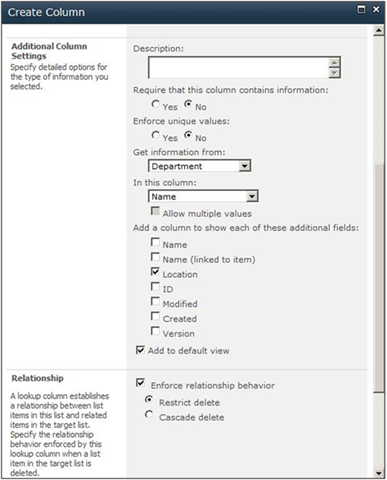
As you know, with SharePoint 2007 we can create relationship between lists using Lookup field. But now, List in SharePoint 2010 also supportsReferential Integrity with another list. So if you have two lists Student and Department, you can create a referential integrity constraint (Cascade Delete or Restrict Delete) between them.
  1. Cascade Delete: Means if item in the parent list is deleted all the associated items in the child list will also be deleted (just like in SQL Server)
  2. Restrict Delete: If an item in parent list is associated to items in the child list, then this item in parent list cannot be deleted unless its association with all the items from the child list is removed.
Here in below example, I have created two List “Student” & “Department”. And now I am creating a relationship between “Student” and “Department”. For this I have to create a column in “Student” list. See the diagram below. (Also see the referential integrity constraint between the two list set to “Restrict Delete”, which means the “Department” cannot be deleted if there are one or more “Student” related to it, just like between any two SQL tables).
image

2. Projected Fields in Lists:-
These are fields from the parent list which will appear in the view of the child list. These are additional fields from the parent list to be shown in the child list. E.g. from the above diagram, Department Location from the department will be shown in the student list. These fields are NOTsaved in the child list (Student) and will be only shown in the child list. See the diagram below. Here the “Department Location” is a “Project Field” from the “Department” list to be shown in the “Student” list, but it is not saved in the “Student” list.
image
image
3. Unique Columns:-
You can create unique column (meaning the column will hold the unique data) inside a list in SharePoint 2010. The unique column MUST be indexed. So while creating the unique column, SharePoint 2010 will ask you to index the Unique Column. E.g. Student “Registration No” can be a unique column in the “Student” list. You can also make any existing column as unique column provided it has unique data for all the list items.
4. JOIN and Querying Data from Two Lists:-
Developers can query the SharePoint 2010 List using CAML and LINQ to SharePoint and select fields from two different lists as shown in the code below. Here in the below code ( LINQ To SharePoint), I have retrieved all the “Students” for the Department “Computer Science”.
Note: - In order to use LINQ to SharePoint you have to generate the “SharePoint Context” from the SPMetal tool (now comes as a part of SharePoint 2010), which is located at the following directory. (“C:\Program Files\Common Files\Microsoft Shared\Web Server Extensions\14\BIN”). Here is syntax to generate your Context.cs file.
SPMetal /web:http://mossserver:8000 /namespace:SPTeamSite /code:SPTeamSite.cs
After this create a new project in VS2010, add the reference to Microsoft.SharePoint.Linq.dll & Microsoft.SharePoint.dll located at the following directory. (“C:\Program Files\Common Files\Microsoft Shared\Web Server Extensions\14\ISAPI”). Also add the SPTeamSite.cs file generated from the SPMetal tool. See the diagram below.
image
Now here is the code to retrieve all the “Students” of a particular “Department”.
image
image
Lists in SharePoint 2010 have a lot more to offer. I will do more posting on the new features of Lists in SharePoint 2010 as I learn more about it.
Cheers :)

Thursday, September 23, 2010

Working with Silverlight

Here are some examples of integrating silverlight and javascript


Add this reference to your code behind

using System.Windows.Browser;

Simple call :

private void btnFonctionJs_Click(object sender, RoutedEventArgs e)

{

HtmlPage.Window.Invoke("AfficheMessage");

}
Call with parameters

private void btnFonctionJsParam_Click(object sender, RoutedEventArgs e)

{

HtmlPage.Window.Invoke("AfficheMessageParam", new string[] { "Salut!" });;

}

call with anonymous javascript function

private void btnJsInline_Click(object sender, RoutedEventArgs e)

{

HtmlPage.Window.Eval("(function(){ alert('Fonction anonyme Js inline depuis Silverlight 2'); })()");

} 

Working with Sharepoint Properties on 2010

SharePoint WebPart Property Attributes


I wanted to put this information out there because it was not well published when I was building WebParts for the first time. When you build a WebPart in MOSS 2007 you have the ability to expose the public properties of the WebPart in the editor pane of the WebPart page. This allows you to set some administrative values for the WebPart behind the scenes. In order to make this happen you have to tag the property as being Web Browsable.


Unfortunately most of the documentation only gives information on the WebBrowsable and Personalizable attributes. However there are a few others that you might find valuable to know about. Some of the other attributes are listed below along with explanations and links to further resources.


WebBrowsable [WebBrowsable(True)]


"Indicates whether the designated property of a Web Parts control is displayed in a PropertyGridEditorPart object." (MSDN)


WebPartStorage [WebPartStorage(Storage.Personal)]


This attribute specifies what type of storage options the WebPart will make use of. The most common is Storage.Personal. "This property can be personalized by individual users. Its WebPartStorageAttribute value is Storage.Personal, which specifies that the property can be stored on a per-user basis. Only users with the Personalize Web Part pages right can set this property." (MSDN)

Personalizable [Personalizable(true)]


Allows users the ability to personalize settings for the WebPart.


WebDispayName [WebDisplayName(string)]


Defines the Friendly Name for a property of a WebPart control. This is the name that will show up in the editor screen.


WebDescription [WebDescription(string)]


Defines the string value to use as a ToolTip for a property of a Web Parts control. (MSDN)


SPWebCategoryName [SPWebCategoryName(string)]


Defines the friendly or localized name of the category of a property in the CustomPropertyToolPartcontrol inside the ToolPane.


ConnectionProvider [ConnectionProvider(string)]


Identifies the callback method in a server control acting as the provider in a Web Parts connection, and enables developers to specify details about the provider's connection point. (MSDN) This is used to create connectable WebParts.


ConnectionConsumer [ConnectionConsumer(string)]


Identifies the callback method in a server control acting as the consumer in a Web Parts connection, and enables developers to specify details about the consumer's connection point. (MSDN) This is used to create connectable WebParts.


Below is an example of how to use these attributes in your WebPart code.


[WebBrowsable(true),


Personalizable(false),


WebPartStorage(Storage.Personal),


WebDisplayName("User Name(Domain\\username)"),


WebDescription("User to display in the WebPart."),


SPWebCategoryName("Options")]


public string UserLoginName


{


get { return _loginName; }


set { _loginName = value; }


}


Happy coding!

Saturday, September 11, 2010

Silverlight Development

In my new role one of my new responsabilties is the development of Silverlight applications, and then include them inside my sharepoint projects, so here we go with some tips.

To display Alert Box, use:
System.Windows.Browser.HtmlPage.Window.Alert("Alert Message");
To display Input box (prompt), use:
string strValue = System.Windows.Browser.HtmlPage.Window.Prompt("What is your age?");
To display confirm box, use:
bool blnResult = System.Windows.Browser.HtmlPage.Window.Confirm("Are you sure?");

So since now I am including some silverlight tips and tricks on my posts.

I will be expecting your comments.